
How to make a Discord bot on your phone (no coding)
You can configure a hosted bot through a phone browser without writing code or running a bot process on your phone. This walkthrough uses Build Discord Bots with Tools & Utilities and Statistics. Keep the builder and Discord Developer Portal in separate browser tabs. The Portal can be awkward on a small screen: try your browser’s Desktop site or Request Desktop Website mode if its sidebar or controls are hard to reach. We checked our wizard in a local 390-pixel preview; this is not a claim that we tested particular phone models or completed a live Discord setup on them.
Start freeStart free. Pro is $9.99/month.
Before you start
- Have a Discord account and a test server where you have Manage Server. Sign up or sign in to Build Discord Bots in your phone browser, then open Create Bot from the dashboard.
- Use a normal browser with cookies and JavaScript enabled. Be ready to complete any Discord login or two-factor authentication prompts. The Developer Portal is a website; these application settings are not in the Discord mobile app.
- For this example, choose Tools & Utilities and Statistics, both Free modules. Free publishes 1 bot and 10 custom commands; Pro publishes 3 bots and 200 custom commands. See Pricing below for the current plan comparison.
Create the application and open its Bot page
In the Discord Developer Portal, sign in, tap New Application, enter a name and complete the creation dialog. Open the new application. You can skip copying its Application ID: the builder normally detects that public number when it creates the bot. It is not a bot token.
Open Bot in the application sidebar. Discord’s current documentation says new applications already have a bot user enabled by default. If an older application instead offers Add Bot, create its bot user there. Use the Portal’s Bot page to configure that user. On mobile, open the sidebar or switch temporarily to desktop-site mode if you cannot see the page links.
Open Discord Developer Portal · Discord: create an app and configure its bot
Turn on the three intents for this example
On the Bot page, find Privileged Gateway Intents. Turn on only the switches the wizard’s checklist marks for your modules, then select Save Changes. Statistics uses presence and member data; prefix commands need message content, so our Tools & Utilities plus Statistics example marks all three: Presence Intent, Server Members Intent and Message Content Intent. Keep Requires OAuth2 Code Grant off for the direct invite.
The wizard’s intent checklist changes with your module selection. A new bot using fewer modules can need fewer intents; older bots and bots with custom modules can request all three. Follow the checklist for your actual selection rather than assuming every bot needs every intent. Discord requires the requested intents to be enabled, and larger apps may also require Discord’s approval. Enabling a switch is separate from inviting the bot or granting channel permissions.
Generate and copy the bot token privately
Still on the Bot page, find Token and select Reset Token, then Copy to generate and copy a token. Complete Discord’s confirmation or authentication prompts. Discord does not let you view the same token again after leaving that screen; resetting it creates a replacement.
Treat the token as a password. Paste it only into the builder’s Bot Token field, not Discord chat, support messages or a screenshot. Do not paste the Public Key, Application ID, client secret or an invite URL instead. Keep it in a password manager if needed. If you expose or reset it, replace the saved token in the bot’s Settings and restart the bot.
Fill in the phone wizard and choose your modules
Return to Create Bot. At phone width the wizard starts with Choose: tap Build from scratch to reach Details. Enter a bot name of at least two characters and paste the token into Bot Token. The picture below shows the actual local wizard with a disposable account and no real token.
In the module picker, select Tools & Utilities and Statistics for this example. Phone categories after the first are collapsed initially; expand the relevant category to find a module. Review the intent checklist again after selecting Statistics. Optional fields include the command prefix and Application ID. The default prefix is !; leave it unchanged for the test below. The builder normally detects the Application ID, so the manual ID is only an invite-recovery option.
Continue to Create to review your choices. The wizard checks the token before advancing and before submission. If it reports an invalid token or missing intents, fix the indicated Discord setting and recheck. Tap Create Bot once and wait for the result. Creation saves the bot and hosting may begin automatically. Use the activation screen to add it to Discord and verify hosting.
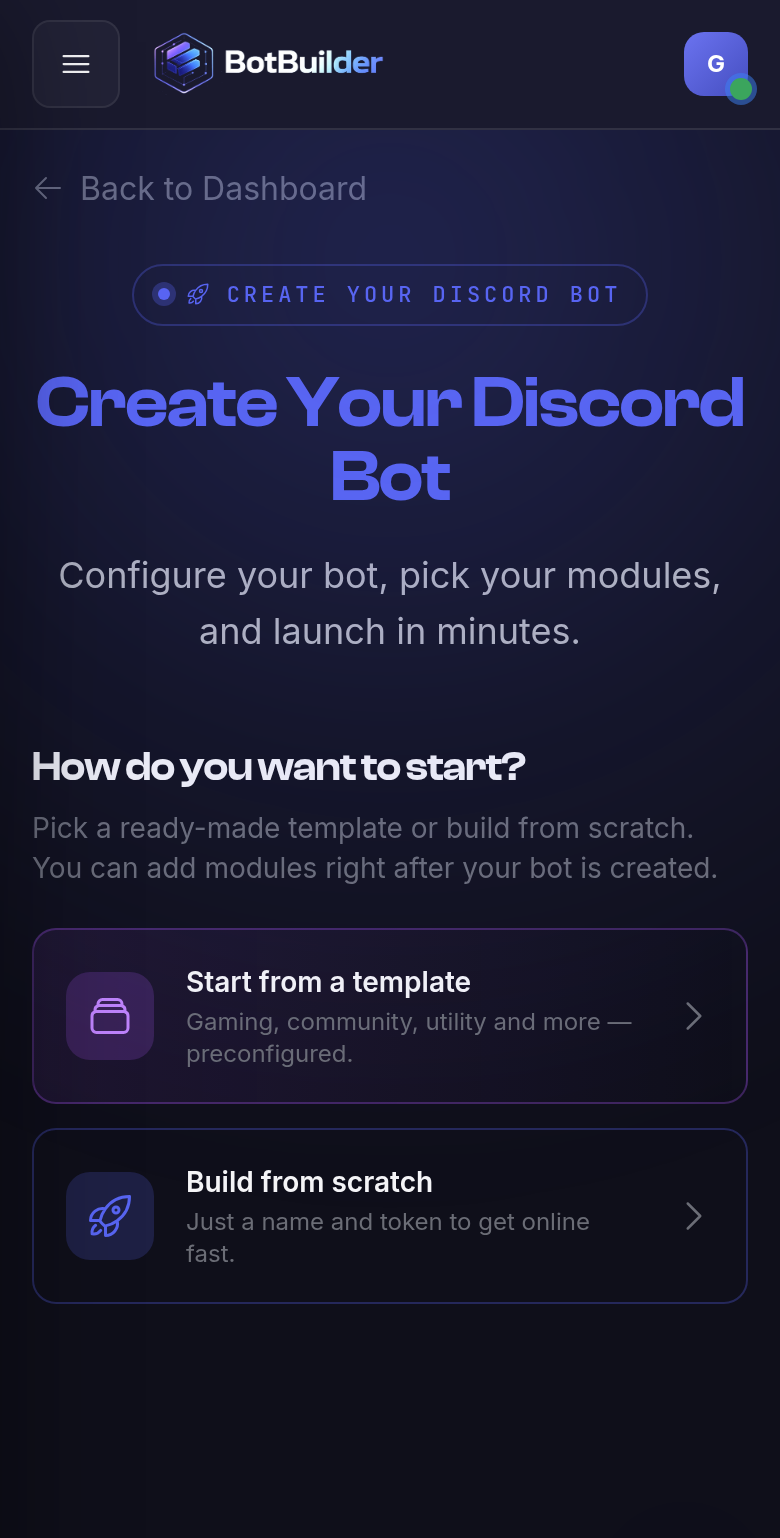
Choose step in a local 390-pixel browser preview. Disposable account; no Discord application or token is shown. Add the bot to your server and check hosting
On the creation result, use the Add to server action. If it reads Add to server and start, it also requests hosting start; hosting may already be online. It opens Discord authorization. Choose Add to server if Discord asks for an installation context, select your test server and complete authorization with an account that has Manage Server. Opening or canceling that tab is not proof that the bot joined.
The current builder invite requests Administrator permission. That is broad access: inspect the authorization screen and use a test server first. It does not provide a least-permission invite picker. If invite setup asks for an Application ID, copy it from General Information in the same Discord application, save it and reopen the invite.
Return to the builder and check the activation status: hosting online and joined to the intended server are separate checks. If hosting is still stopped, use its start action; if startup fails, read the displayed reason before retrying. The bot runs on hosted infrastructure, so you do not need to keep the phone browser open after setup. This is not an uptime guarantee.
In Discord, use !ping in a test text channel the bot can view and reply to. Tools & Utilities supplies this command. If there is no reply, confirm the bot is online, the invite completed, Tools & Utilities is enabled, the prefix is !, and Message Content Intent and channel access are correct. You can use Discord’s browser interface on the same phone; no terminal or code editor is part of this setup.
Frequently asked questions
Can I make the bot without a computer?
The builder workflow uses a phone browser and hosted execution, without a local terminal. Discord Developer Portal controls may be easier to reach in desktop-site mode. We have not tested specific phone models.
Do all new bots need the three privileged intents?
No. This Tools & Utilities plus Statistics example requests all three. New bots use the module selection to determine their requested intents; follow the wizard’s checklist for your selection.
Does my phone have to stay on?
No. The bot runs on hosted infrastructure after you start it. Closing the phone browser does not host or stop the bot; availability still depends on the hosting service and Discord.
Is creating the bot the same as inviting and starting it?
No. Creation saves the bot and hosting may begin automatically. The activation screen opens Discord authorization and can request hosting start when needed. It checks hosting and server membership separately.
Related service
For the broader no-code bot-building path on any device, see the no-code Discord bot builder overview.