
A Discord ticket bot you can deploy in a minute
Support in open channels is chaos: questions get buried, staff double-answer, and there's no record of anything. The Tickets module gives your server a support desk — members click a panel button, a private ticket channel opens with a live ticket card, and staff can claim or close it with a reason.
Start freeNo credit card · Free forever plan · Online 24/7
The !ticketsetup wizard configures the free plan's ticket category, staff role, panel channel, and logs with native pickers, then runs a permission health check. If a support queue needs it, an owner can opt in to inactive-ticket cleanup: the bot warns once after the selected quiet period and only closes after a further quiet period with no human reply. Managers can exempt an individual ticket. When an automatic close has a configured ticket log, it archives an HTML transcript there. Tickets is free forever on the free plan (1 hosted bot, no code); manually requested transcripts and priority controls are Pro capabilities.
What you get
Guided setup + health check
!ticketsetup walks through a ticket category, staff role, panel channel, and logs with real pickers, then checks the permissions the bot needs.
Member-owned tickets + optional staff opening
Each ticket has a live card with status, claim and close controls. Let staff open tickets for members defaults to off. When enabled in the dashboard, /ticket open user:@Sam creates a private ticket owned by Sam, with access for Sam, the bot, the configured support role and the staff member who opened it. Server administrators can still see private channels. The opener is recorded separately; this does not claim the ticket automatically or accept DMs.
Optional inactive-ticket cleanup
Off by default. Choose a warning delay and a later close delay. A human reply resets the timer, and a manager can exempt a ticket; bot and system messages do not count as activity. An automatic close archives an HTML transcript to the configured ticket log; manually requested transcripts and priority controls are Pro.
What setup looks like
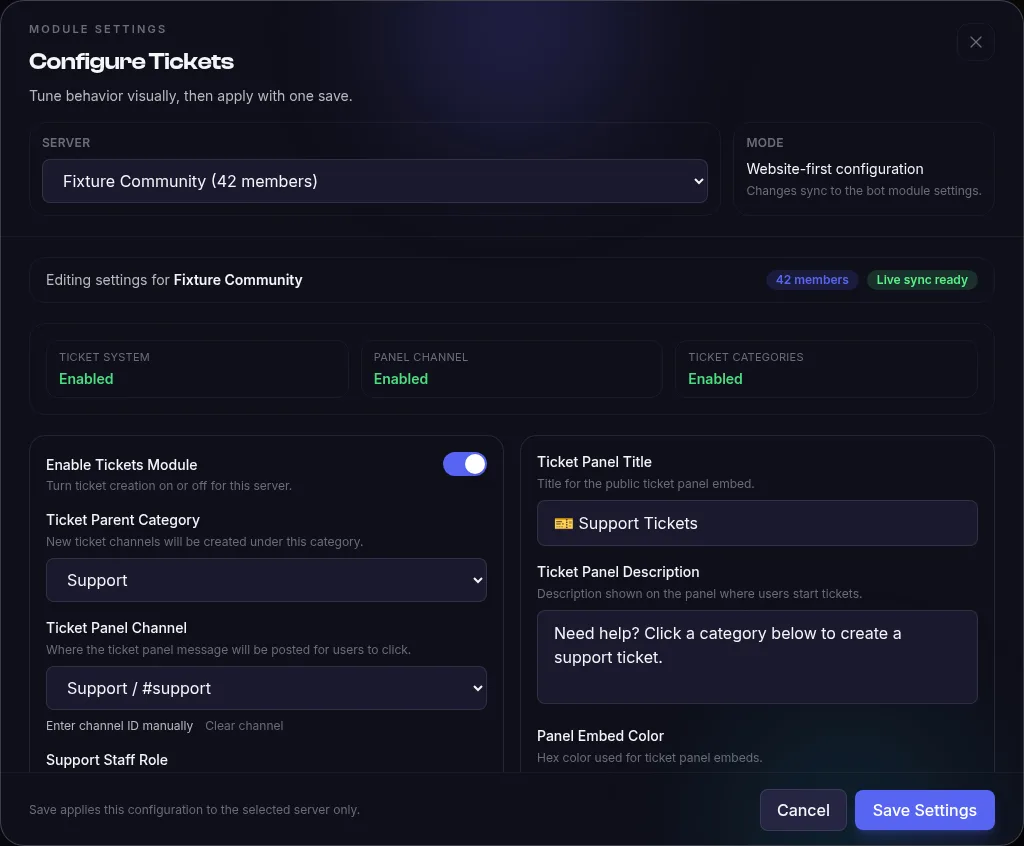
Open your bot’s Modules tab, configure Tickets and select the server. Choose a parent category, panel channel and support staff role. The dashboard also holds the panel text, ticket categories and logging options; publish a panel in Discord with !ticketpanel.
Troubleshooting
Why can’t the bot create a ticket channel?
Run !ticketcheck in Discord to see the permission health check. The bot needs Manage Channels in the server and View Channel plus Manage Channels in the selected parent category. A deleted or incorrectly selected category also fails the check.
Why won’t the ticket panel publish?
Check the selected panel channel. The permission audit requires View Channel, Send Messages, Embed Links and Read Message History there. Use !ticketcheck to inspect the configured channel and !ticketpanel to publish the panel.
Why can’t a member open another ticket?
Ticket creation must be enabled for the server, and the member must be below the configured maximum open tickets per user. The Free plan caps this at one open ticket per user; Pro uses the saved limit. Close an existing ticket or review the server’s ticket settings. For staff opening, enable Let staff open tickets for members in Tickets settings for the selected server. The caller needs the configured support role, Manage Channels or Manage Server, or must own the server. Choose a current non-bot member. Existing generated bots need regeneration to receive the new command.
Can Tickets close inactive tickets automatically?
Yes, when an owner turns on inactive-ticket cleanup. The bot warns in the ticket after the chosen quiet period, then closes it only after the additional configured quiet period. A human reply resets the policy and managers can exempt individual tickets; it is off by default.
Example commands
| Command | What it does |
|---|---|
!ticketsetup | Run the setup wizard for the ticket category, staff role, panel channel, and logs, ending with a permission check. |
/ticket open user:@Sam reason:Follow-up | When enabled, staff open a ticket owned by Sam. Free allows one open ticket per member; Pro uses the configured per-member limit. The slash reply is private. |
!ticketinactivity exempt | Keep the current ticket out of inactive-ticket cleanup until a manager includes it again. |
Full command list and configuration options in the Tickets documentation.
What does it cost?
Tickets is free forever — it is one of the 16 stock modules included with the free plan.
- 1 hosted bot, online 24/7
- 16 free-forever modules
- 10 custom commands
- No credit card required
- 3 bots
- All 44 modules
- AI Module Builder (50 credits/mo)
Frequently asked questions
How long does it take to set up a Discord ticket bot?
Create and start your bot with Tickets enabled. Then use !ticketsetup to pick a category, choose your staff role, set a log channel, review and publish the panel. The wizard ends with a permission health check.
Is the ticket bot really free?
Yes. Tickets is one of the 16 free-forever modules — the free plan includes 1 hosted bot at no cost, no time limit. Start free. Pro is $9.99/month.
Do I need to know how to code?
No. You paste your bot token once and the platform generates and hosts the bot 24/7. Ticket categories and staff roles are configured with the in-Discord wizard or the web dashboard — all point-and-click.
Related modules
Add Tickets to your server today
Create your bot, toggle the module on, and it's live — hosted for you, no code, no downloads.
Start freeNo credit card · Free forever plan · Online 24/7